Context links
Context links
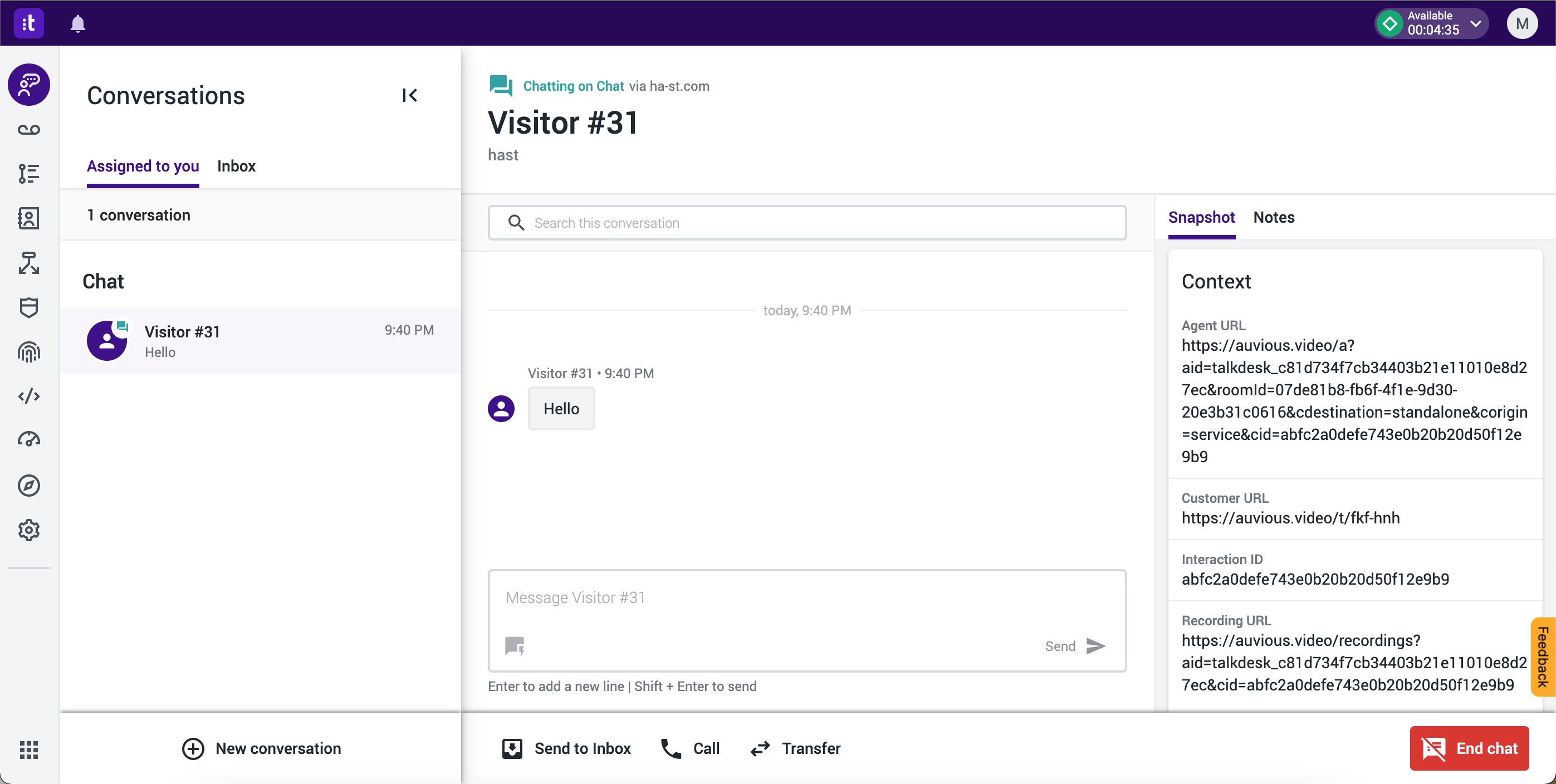
Talkdesk offers the ability to show contextual information on a chat conversation. Using our APIs you will be able to create agent and customer links for a video call and show them to the Context menu of a chat conversation.
Prerequisites
Follow the instructions in the Actions page on how to install auvious and setup the core integration and actions required to authenticate to auvious and generate a customer and agent link.
Step 1. Change the flow to support the action
Go to Studio and open the flow you would like to add contextual info to. The studio editor opens in a new tab.
- Click Edit to start editing the flow
- Click the Initial step
- In the incoming message arguments create a new pair. Argument name is
user_idand create a new flow variable (if not already there) calledCustomer ID. - In the Preferences tab
- In the Global variables set
contact.nameto a flow variable (ex.name) and also setinteraction_idto a flow variable (ex.Interaction ID) - In the Chat variables set
website_urlto a flow variable (ex.Website)
- In the Global variables set
- In the Exits tab
- Add a new step
- Component type is
Execute Action - Give it a step name
- Click the new
Execute Action - Select the Connection we have created
- Select the Action we have created
- Configure the Inputs
- Set the
applicationIdto the auvious application id found in settings (value) - Set the
cdestinationtostandalone(value) - Set the
customeridto ..... - Set the
interactionIdto theInteraction IDFlow variable - Set the
organizationIdto .... - set the
urlBasetohttps://auvious.video
- Set the
- Configure the Outputs
- Parsed Response
- Set
agentUrlto a flow variable (ex.agent_url) - Set
recordingUrlto a flow variable (ex.recording_url) - Set
ticketUrlto a flow variable (ex.customer_url)
- Configure the Exits
- Click on the
{ }icon on the left (Manage Context) - Select
agent_url,customer_urlandrecording_urlfrom the list.
Step 2. Test the flow
Once you are done with the changes, publish the updated flow and start a chat conversation to see if the context now has the new Flow Variables.